Documentation
AI Assistant - Extension for Opencart
- Version: 1.0.0
- Compatibility: Opencart 2.3.0.2, 3.x.x
- Author: Leverod.com
- Created on: June 10, 2023
Getting Started
AI Assistant is the extension that allows you to automate product and category text writing, saving you time and money. You will no longer need to hire a copywriter or seo expert because AI Assistant will create texts that are already optimized for search engines.
Installation
Check your Opencart version before installing the extension. The extension is available for the Ocmod and vQmod modification systems.
OCMOD Instructions
Fresh installation
On Opencart 2.0.0.0 and 2.0.1.0 the Opencart modification system had some bugs, solved from Opencart 2.0.1.1 (see https://github.com/opencart/opencart/issues/2436).
If you use Opencart 2.0.0.0 or 2.0.1.0, we recommend you to use one of the following options:
-
Update the modification system of your site by downloading zip installer of Opencart 2.0.1.1 and copying the file admin/controller/extension/modification.php to the same folder of your site. We recommend you to use the file of Opencart 2.0.1.1 because newer Opencart versions may no longer be compatible with Opencart 2.0.0.0 and 2.0.1.0.
-
Alternatively, use the vqmod version of the extension, available from the file download list on the marketplace where you purchased the extension (Opencart.com or Leverod.com).
The extension does not overwrite any files of your Opencart installation. However, it is a good idea to make a backup of files and databases before installing any extension. This makes it easier to restore the site in case of problems.
-
Log in to your site's administration panel;
-
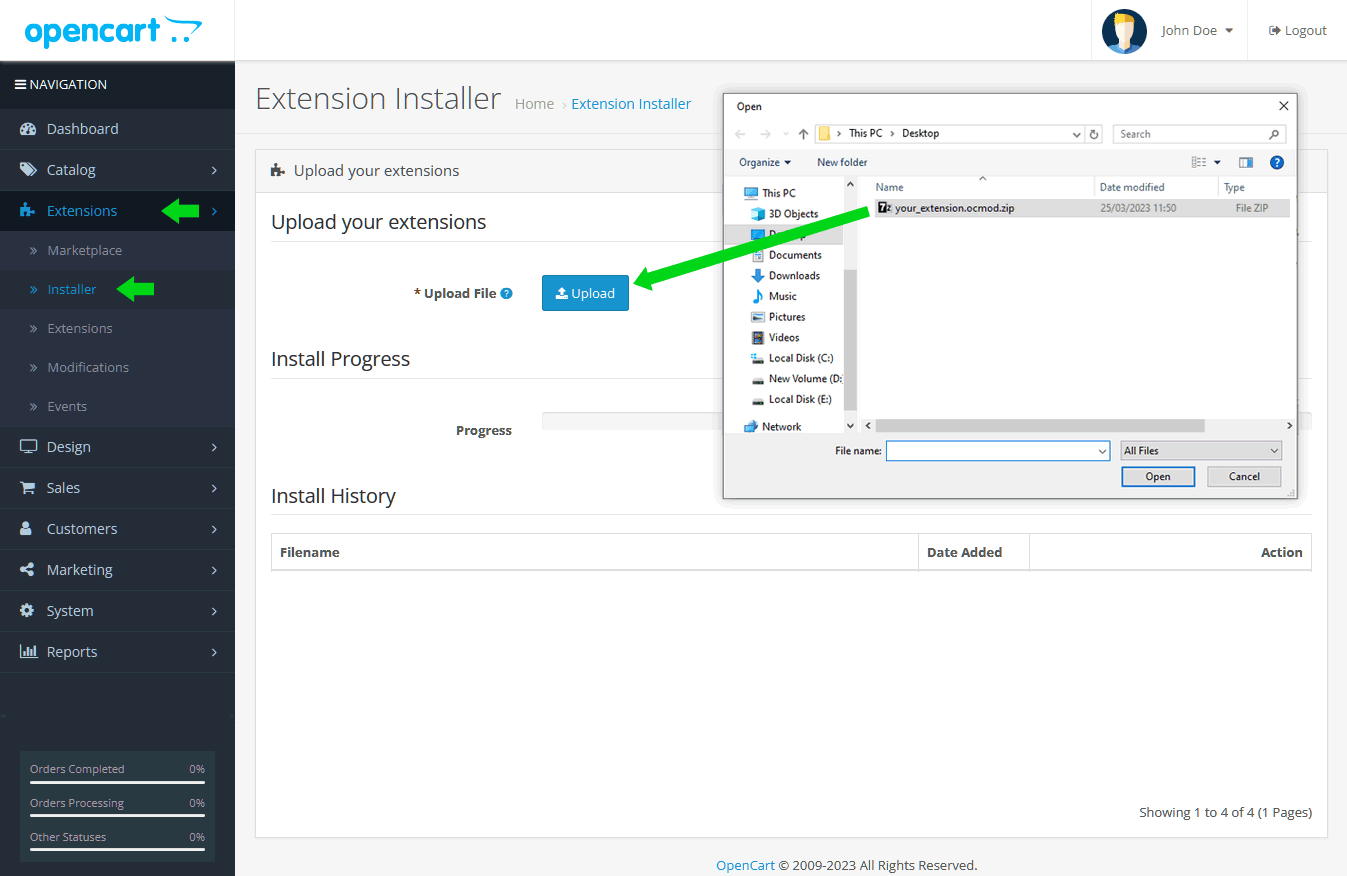
Go to Extensions > Installer and upload the file ai_assistant.ocmod.zip as shown in the picture:
-
Refresh the cache of the modification system from Extensions > Modifications:
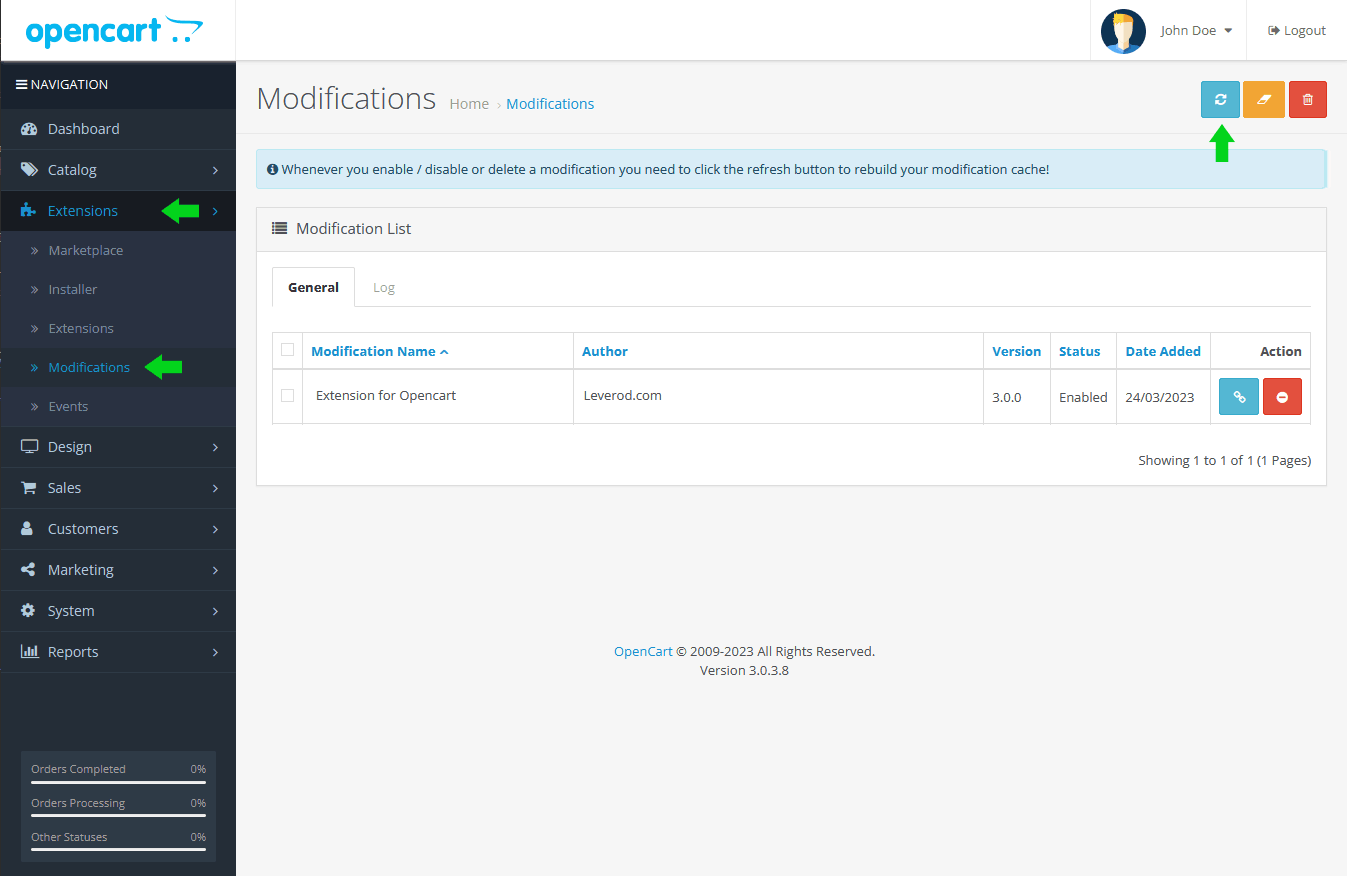
If the installation was successful, you should see the extension in the page Extensions -> Extensions -> Modules of the Admin panel. Now you can start configuring the extension.
Update from a previous version
If you are updating the extension from a previous version, uninstall the old version first.
Uninstallation
To uninstall the extension:
-
Log in to your site's administration panel;
-
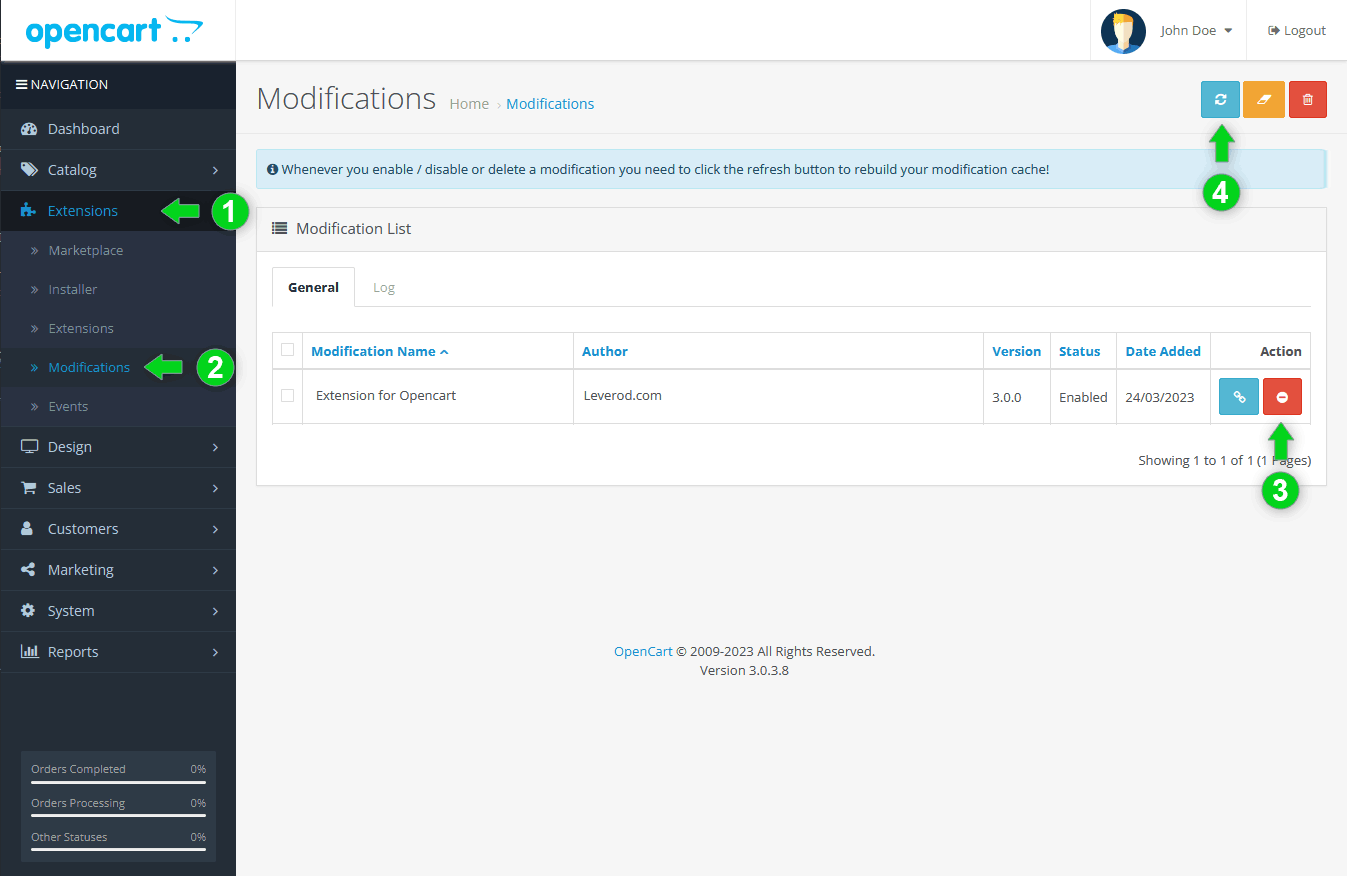
Go to Extensions > Modifications;
-
Find the extension in the Modification List and click on the red button Disable (3);
-
Refresh the modification cache (4).
VQMOD Instructions
AI Assistant is also available as a vqmod extension.
vQmod is a modification system that can be used as an alternative to Ocmod.
vQmod can be downloaded here: https://github.com/vqmod/vqmod/releases
You have to choose the latest vqmod version for Opencart.
vQmod installation instructions: https://github.com/vqmod/vqmod/wiki/Installing-vQmod-on-OpenCart
Fresh installation
To install AI Assistant as vqmod extension:
-
Unzip the file ai_assistant.vqmod.zip
-
From the file manager of your hosting control panel (or from any FTP client), copy the content of the folder upload in the root folder of your site (the content of that folder, not the folder itself).
Update of a previous version
If you are updating the extension from a previous version:
-
Uninstall the old version first;
-
Follow the same installation instructions as in the Fresh Installation section;
-
During the installation process you will be prompted to overwrite the old extension files with the new ones.
Now that the installation is complete we can configure the extension.
Configuration
The following paragraphs will show you how to configure the extension.
After installing the files you have to enable the extension and add an OpenAI API key. From the left menu of the Admin panel go to Extensions > Extensions > Modules > AI Assistant and click on the Install button (4).

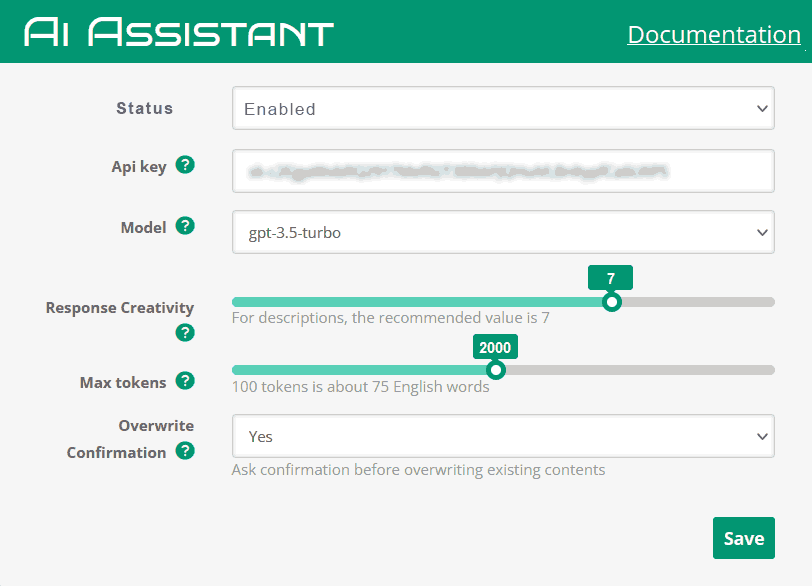
The control panel has five settings:
- OpenAI API key
- Model
- Response Creativity
- Max tokens
- Overwrite confirmation
Let's examine them one by one.
OpenAI API Key
AI Assistant is based on the OpenAI libraries. In order to interact with those libraries, you must have an OpenAI account and obtain an API key (if you have already used Chat GPT, you can use the same OpenAI account).
If you do not have an OpenAI account, create one here: https://platform.openai.com/signup?launch
Once you have an OpenAI account, create an API key at this address: https://platform.openai.com/account/api-keys
Model
An OpenAI model is a type of software created by OpenAI. This software is designed to understand and generate human-like text. Models have been trained on a large amount of written information from the internet so that they can learn how language works.
They can be fine-tuned on specific tasks to enhance their performance in specialized areas such as language translation, chatbots, content generation, and more.
We have choosen two OpenAI models for AI Assistant: GPT-3.5-turbo and GPT-3.5-turbo-instruct.
They are quite similar but with some differences explained below so that you can choose the one that best suits your work.
Response Creativity
Response creativity (model temperature) controls the randomness and creativity of the generated text. A low value indicates that the responses will be more deterministic and predictable. A value close to 10 means the generated text will be more creative and diverse.
For the type of task that AI Assistant has to perform, we have preset a value of 7, which has proven to be a good compromise for producing quality texts.
Max tokens
A token refers to a fundamental unit of text or information that AI models use to process and understand language. Think of tokens as the building blocks of text. When you write a sentence or a paragraph, it consists of different words, punctuation marks, and even spaces. In AI language models, these individual components are broken down into tokens.
AI Assistant is designed to create product content in any language. and it offers the possibility to control the maximum number of tokens to be used. Consumption of tokens, however, varies from language to language. This results in a difference in costs depending on the language used.
Relationship between tokens and languages
The relationship between tokens and languages is influenced by the characteristics of different languages, including their grammar, vocabulary, and syntax. The number of tokens required can vary between languages due to these linguistic factors.
Some languages require more tokens because they tend to have more complex grammatical structures or longer words. For example, languages like German or Finnish often have compound words that combine multiple words into one. Each component of the compound word may be treated as a separate token, resulting in a larger token count.
Additionally, languages with rich inflectional systems, such as Russian, can lead to increased tokenization. Inflections involve modifying words to indicate grammatical aspects like tense, gender, number, and case. Each inflected form may be considered a separate token, resulting in a higher token count compared to languages with fewer inflections.
Moreover, languages with extensive vocabularies or a high degree of specificity may require more tokens. For instance, English has a relatively large vocabulary, but languages like Chinese or Japanese may have a smaller number of characters or symbols, leading to fewer tokens.
It's also worth noting that different AI models may have varying tokenization approaches for different languages. Some models may have specific preprocessing steps or tokenization rules designed to handle the linguistic characteristics of particular languages effectively.
Overwrite confirmation
When this option is enabled, AI Assistant checks that the product/category fields do not already contain data. If so, it asks for confirmation before overwriting the old data.
A small exception is made for seo keywords. If there is already a seo keyword set for a product or category, AI Assistant does not overwrite it, to prevent the page from losing visibility on search engines in case it has already been published online.
If you want AI Assistant to generate an seo keyword for the current product or category, manually empty the seo keyword field.
USAGE
Using AI Assistant is very intuitive, you just have to enter the product or category name in the product/category name field and click on the Auto-fill button of the language for which you want to generate content, then wait a for the request to be processed by OpenAI.
The waiting time for the request to complete is about twenty seconds but can vary depending on your subscription plan with OpenAI, the speed of the connection between OpenAI servers and your server, the complexity of the product/category name, and the language used.
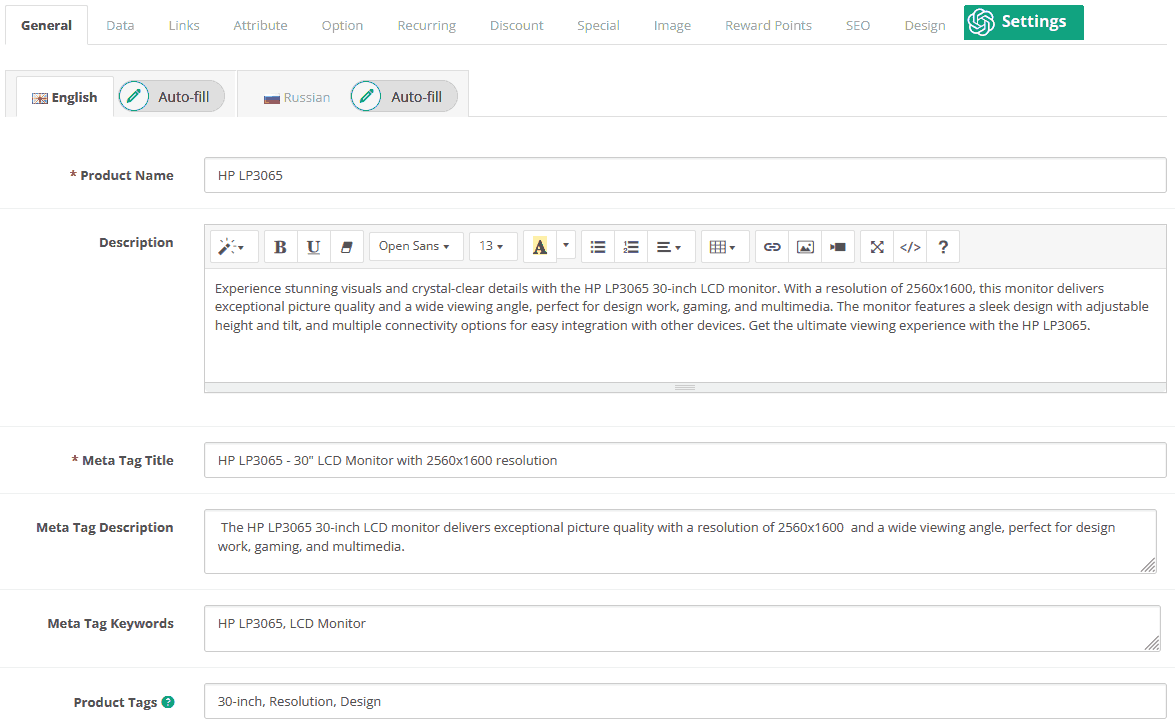
To generate quality content, you will need to write a product name that contains enough information for the AI model to understand what it is and generate appropriate content. For example, if you want to write a description about the iPhone 14 Pro, don't just write iPhone 14 in the product name field, but also include the word Pro so that the description is more detailed.
Note: The content that the AI model is able to produce depends on the AI model's actual knowledge of the product. If you use meaningless names such as Akljsj3 without specifying any additional info about the product, the AI model may generate unreliable content.
If you have a product such as a car spare part that is identified by a model number, e.g. oil filter mod. 43kl32, we recommend using a descriptive product name, including more information in the name like the car brand name that uses that type of oil filter. This way, the AI model, while not knowing the filter in question, will produce satisfactory content to properly describe the product.
TROUBLESHOOTHING
- Make sure the extension has been installed correctly (see OCMOD Instructions section).
- Check that the user accessing the product/category page has the necessary permissions to use AI Assistant (from System > Users > User Groups).